Review and approve updates
Your firm must connect Kaiya to Invenias and enable updates to use this feature.
Ask Kaiya to add, update or delete People, Companies, Assignments and Programmes in Invenias. Kaiya always prepares an update plan. Review the possible matches and changes before you approve it.
See Let Kaiya manage an assignment for examples from setup to reporting. Check Supported Invenias updates for individual actions and restrictions.
If Kaiya says updates are unavailable, contact the Kaiya team at hello@kaiya.ai.
If your firm does not connect Kaiya to Invenias, ask Kaiya to prepare a change table for manual entry.
Ask for the change
Describe the record and the change in ordinary language. Include a link, Invenias identifier, employer or location when two records could have the same name.
Add Priya Shah to Invenias as VP Finance at Acme Cloud. Use the attached CV and her LinkedIn profile.
Include her current location and contact details from the CV.
Update the Acme Software CFO assignment from these meeting notes.
Include the agreed location, reporting line and essential buy-and-build requirement.
Tell Kaiya which record and value you mean when the source material does not make them clear.
A plan can include changes to related records. Review every change in each plan before you approve it.
Find your plans in CRM updates
Open CRM updates from Kaiya's navigation to find your plans. Use Search updates to find a plan or conversation.
Choose Needs attention to find plans that need your review. Choose In progress to follow current work, or Completed to check finished updates.
You can also open a plan from its chat preview. On mobile, open the app menu to find CRM updates.
Review the update plan
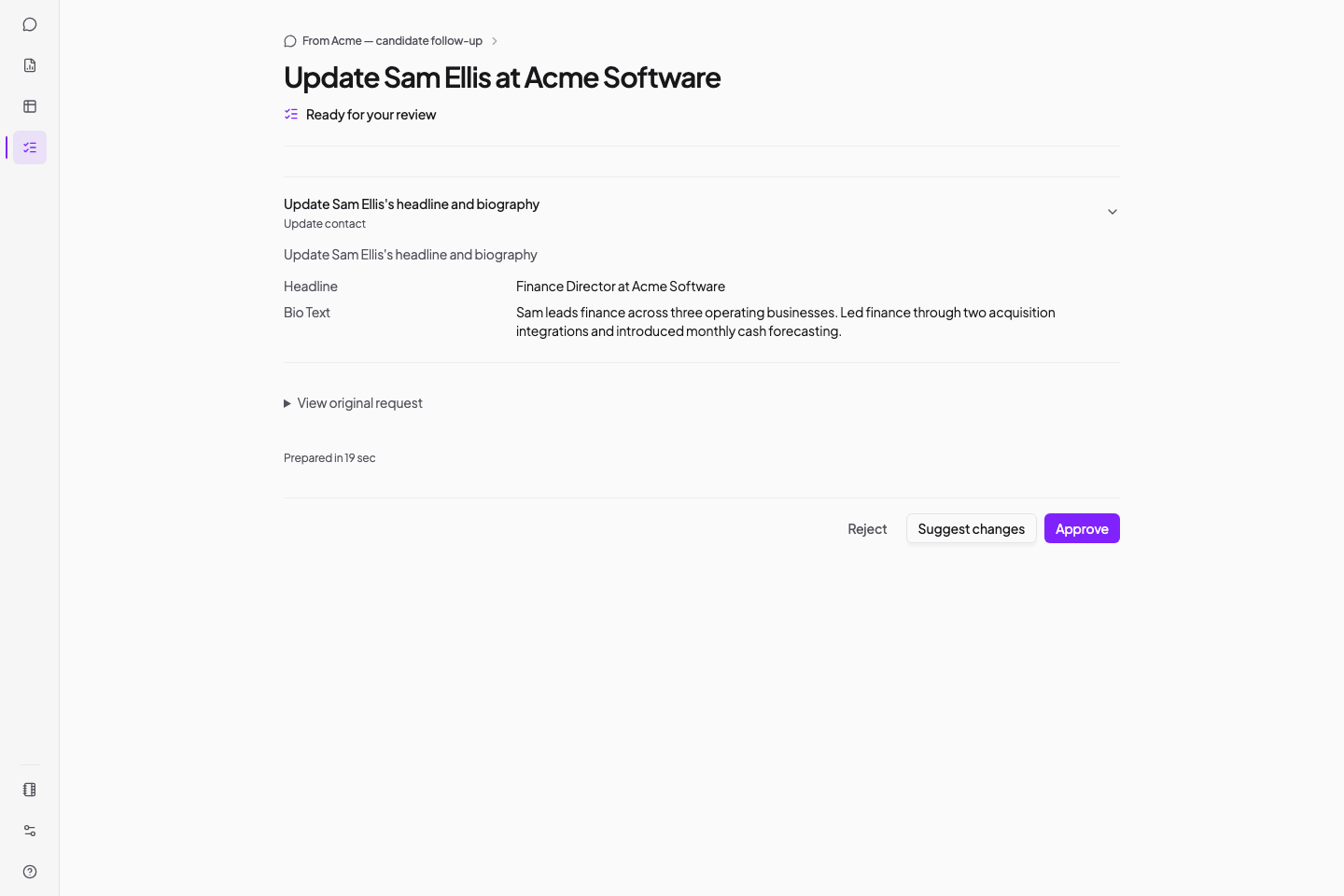
- Ask for the change
Tell Kaiya what to add or update.
- Review the plan
Check the records, changes and any choices you need to make.
- Approve the plan
Kaiya can then make the changes.
- Check the result
Check the plan status. Check the records in Invenias.
To change the plan, select Suggest changes. Explain the correction. Review the new plan before you approve it.
Kaiya checks for existing records before preparing the plan.
- Open the plan from the chat or CRM updates.
- If you opened the chat preview, select View plan.
- Review each match, proposed change and warning, including anything under Not included.
- Make any required choices between possible records or values.
If the plan is wrong or incomplete:
- Select Suggest changes.
- Enter the correction.
- Select Prepare new plan.
- Review the new plan.
If Kaiya should not make the change, select Reject. If the plan matches your request, select Approve.
Kaiya makes no planned change before you approve it.
Check possible matches
Kaiya uses record matching and duplicate checks to reduce the chance of creating a second record for the same person or organisation. These checks cannot find every duplicate. Names change, records can be incomplete and two records may contain different identifiers.
Before approval:
- Compare names, employers, locations and record identifiers.
- Check that a proposed match represents the same person, company, assignment or programme.
- Prefer an existing record when the evidence supports the match.
- Ask Kaiya to search again when the evidence is weak.
Respond to warnings and old plans
Read the warnings before approval. Kaiya flags changes that could remove information, possible matches and unconfirmed facts.
Your firm's off-limits rules may stop a change. Revise the request or ask the person who manages those rules at your firm to review the restriction.
Kaiya marks an old plan for another check. Select Check again to prepare a fresh plan. Review that plan before approval.
Use Approve anyway only after you check the current record and accept the warning shown on screen.
Verify the change
Wait until Kaiya shows that the update has finished. Check which changes completed. Open the Invenias record and check the fields that changed.
Find Priya Shah in Invenias and confirm her current company, role, location and source details after the update.
Kaiya may prepare a replacement plan after a change fails. Each replacement needs your approval before Kaiya continues.
If Kaiya made some changes, check those changes in Invenias before you review the replacement plan.
If the plan fails and you cannot confirm what changed, contact the Kaiya team at hello@kaiya.ai. Include the plan name and the error message. Wait for the team to confirm the result before you request the same update again.